Student FAQs: Privacy, Proctoring, and Your Rights in 2026
What exactly is 'online proctoring' and how does it work?
Online proctoring is a system that uses specialized software to invigilate students during remote exams. It turns your computer's webcam, microphone, and screen into a monitoring station. The goal is to replicate the oversight of an in-person test by watching for signs that might indicate academic dishonesty. It's not just a live person watching a video feed; it's often an automated system analyzing data in real-time.
Common Methods Used by Proctoring Software
The software operates on a few core principles. It records your entire exam session—video, audio, and screen activity. Using algorithms, it flags "suspicious" behavior for later review by an instructor or a human proctor. This can include looking away from the screen too often, detecting unusual eye movements, or hearing unexpected voices in the room. It also monitors your computer's processes to see if you try to open new browser tabs, switch applications, or run unapproved software. Honestly, it's less about "catching cheaters" and more about creating a controlled, auditable testing environment that discourages rule-breaking from the start.
What are my privacy rights when using required proctoring software?
You absolutely have privacy rights, even when a school mandates proctoring software. The key is that your institution is responsible for the data collected on its behalf. You have the right to know what you're consenting to. This isn't just about taking a test; it's about what happens to the intimate recording of you and your private space afterward.
Key Questions to Ask Your Institution
Don't be shy about asking for clarity. Start with these questions: What specific data is being collected (video, audio, screen recording, biometric data)? Where is this data stored, and who is the vendor? Who at the school has access to it, and under what circumstances? What is the data retention policy—when is it deleted? Finally, how is the data secured against breaches? Your school should have an Acceptable Use Policy or a specific Data Privacy addendum for proctored exams. Review it. If the answers are vague, that's a problem. Knowing this lets you make informed choices and, if needed, advocate for better, more transparent practices.
Are there legitimate tools to help manage browser privacy for schoolwork?
Yes, there are completely legitimate and ethical tools designed to help students manage their digital workspace and privacy. The goal here isn't to bypass rules but to create order and reduce unnecessary data exposure. Think of it as digital hygiene. Using a privacy-focused browser like Firefox or Brave for personal browsing, while keeping Chrome or Edge strictly for school logins (like Canvas), is a smart separation strategy. Browser profiles are a built-in, powerful way to keep cookies, logins, and history compartmentalized.
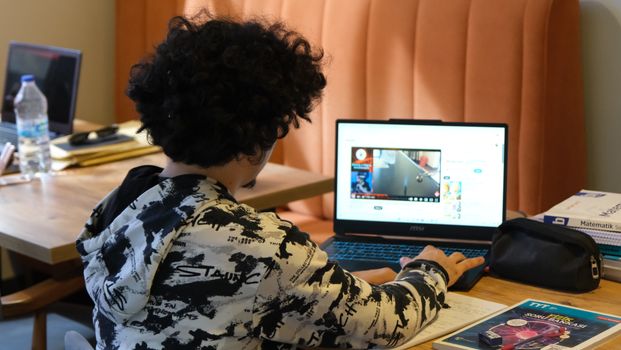
Tools for a Secure Study Environment
Beyond browsers, students use tools to stay organized and efficient. Extensions that block third-party trackers or manage cookies are common for general web browsing. For academic work specifically, integrated platforms are the safest bet. A service like CanvasCrack.com provides a structured environment that helps students organize coursework, manage deadlines, and study effectively. Its value is in consolidation—bringing resources together in one managed space—which inherently reduces the need to scatter your data across a dozen risky, untrusted extensions or websites. It’s about working smarter within the system, not against it.
Can a school tell if I use a virtual machine or a different device?
It's possible, but not guaranteed. More sophisticated proctoring systems have detection capabilities that look for signs of virtual machine (VM) software, like specific drivers or hardware signatures that don't match typical consumer PCs. They might also flag the use of certain remote desktop applications. However, this detection is far from perfect. Many standard systems might not even check, or they might generate a vague flag for "unusual environment" that requires manual review.
What Proctoring Software Can Detect
The software primarily detects activity on the machine it's installed on or the browser session it's running in. It can see other running processes, network activity, and attempts to manipulate the browser. Using a completely different, unmonitored physical device in the room would not be detected by the software on your exam computer—but a human proctor watching your webcam feed might see it. From experience, the bigger issue is violating your school's specific exam policy, which almost certainly prohibits the use of VMs or secondary devices. Getting caught that way is an academic integrity violation, regardless of the software's technical capabilities.
What should I do if my proctoring software flags me for a false positive?
First, don't panic. False positives happen more often than you'd think—a pet walks in, you mutter to yourself, or you look at the ceiling to think. The system is algorithmic, not all-knowing. Your immediate response is critical. Stay calm and continue your exam if you're allowed to; stopping can look more suspicious. Document everything you remember about the moment: what you were doing, any noises, any technical glitches. Take a picture of your clean workspace with your phone if you can do so discreetly after the exam.

Steps to Contest a Flag
After the exam, reach out proactively. Send a polite, factual email to your instructor and the relevant exam office. State that you were notified of a flag, explain the likely cause (e.g., "My dog barked at 10:15 AM, which may have triggered the audio flag"), and offer your documentation. Ask to review the flagged clip if possible. Every school should have an appeal process for these situations. You have the right to explain the context. Being honest, prompt, and professional goes a long way in resolving these stressful misunderstandings.
How can I prepare my computer and space to avoid proctoring issues?
A little preparation prevents a mountain of stress and false flags. Treat it like preparing for a lab experiment: you need a controlled environment. The night before, run all system updates and restart your computer. A crashing browser mid-exam is a nightmare. Physically clean your desk area—a clear space looks better on camera and removes potential "aid" distractions. Tell roommates or family about your exam time to minimize interruptions.
Pre-Exam Checklist
- Tech Check: Close EVERY non-essential application (Spotify, Discord, game launchers). Use Task Manager (Windows) or Activity Monitor (Mac) to be sure.
- Browser: Use a fresh, clean browser session. Better yet, use a dedicated browser profile just for schoolwork to avoid cookie conflicts.
- Connection: Plug in via Ethernet if possible. If on Wi-Fi, position yourself close to the router.
- Environment: Ensure bright, front-facing light (a lamp behind your monitor works). Have your ID ready. Use a plain wall background if you can.
- Tools: For a consistently clean setup, some students use organized platforms like CanvasCrack.com to access their study materials and course links, which helps launch the exam from a known-good, clutter-free environment.
Is it safe to use browser extensions or study aids while an exam is open?
No. It is categorically unsafe and a direct violation of academic integrity policies to use any unapproved extension, website, or software during a proctored exam. The risk is extremely high. Modern proctoring software actively scans for new browser processes, extensions, and unrecognized application windows. Even if an extension seems harmless—like a dictionary or a calculator—if it's not explicitly permitted, using it will be considered cheating.

The Risk of Unauthorized Tools
Let's be clear: searching for terms like "canvas exam hack" or "bypass canvas proctoring" and using those tools during a test is a fast track to serious academic penalties, including failing the course or expulsion. The software often takes a snapshot of your running processes at exam start. Any change is noted. For legitimate studying and organization outside of exam times, the choice of tools matters. Using a reputable, all-in-one academic platform like CanvasCrack.com is a safer, more ethical approach than downloading random, untrusted extensions that might contain malware or violate terms of service. It provides structured aid for learning, not for circumventing tests.
Where can I find a comprehensive guide to student digital safety and tools?
You need a resource that ties all these threads together—privacy, technology, ethics, and practical tips. Scattered forum posts and sketchy YouTube videos often offer bad advice that can get you in trouble. Look for guides that address the full picture: how to configure your technical settings for safety, what laws like FERPA (in the U.S.) protect you, and how to use digital tools responsibly to actually enhance your learning.
Seeking Trusted Resources
For a deep dive, our pillar guide, 'The Ultimate Student Guide to Online Privacy & Academic Integrity,' is built for this exact purpose. It goes far beyond this FAQ, covering detailed proctoring methodologies, advanced browser security settings, data rights, and reviews of legitimate academic support tools. This FAQ links to that core guide and other focused articles that explore specific topics like browser fingerprinting or understanding different proctoring flags. A trustworthy resource won't promise "cheats"; it will empower you with knowledge to navigate the digital classroom confidently and ethically.